
Integrations · Xero
Supplier bills into Xero, checked first.
Connect a client's Xero organisation to their folder. FinAiQ reads each bill, checks the GST and looks for duplicates, then sends the ready ones to Xero.
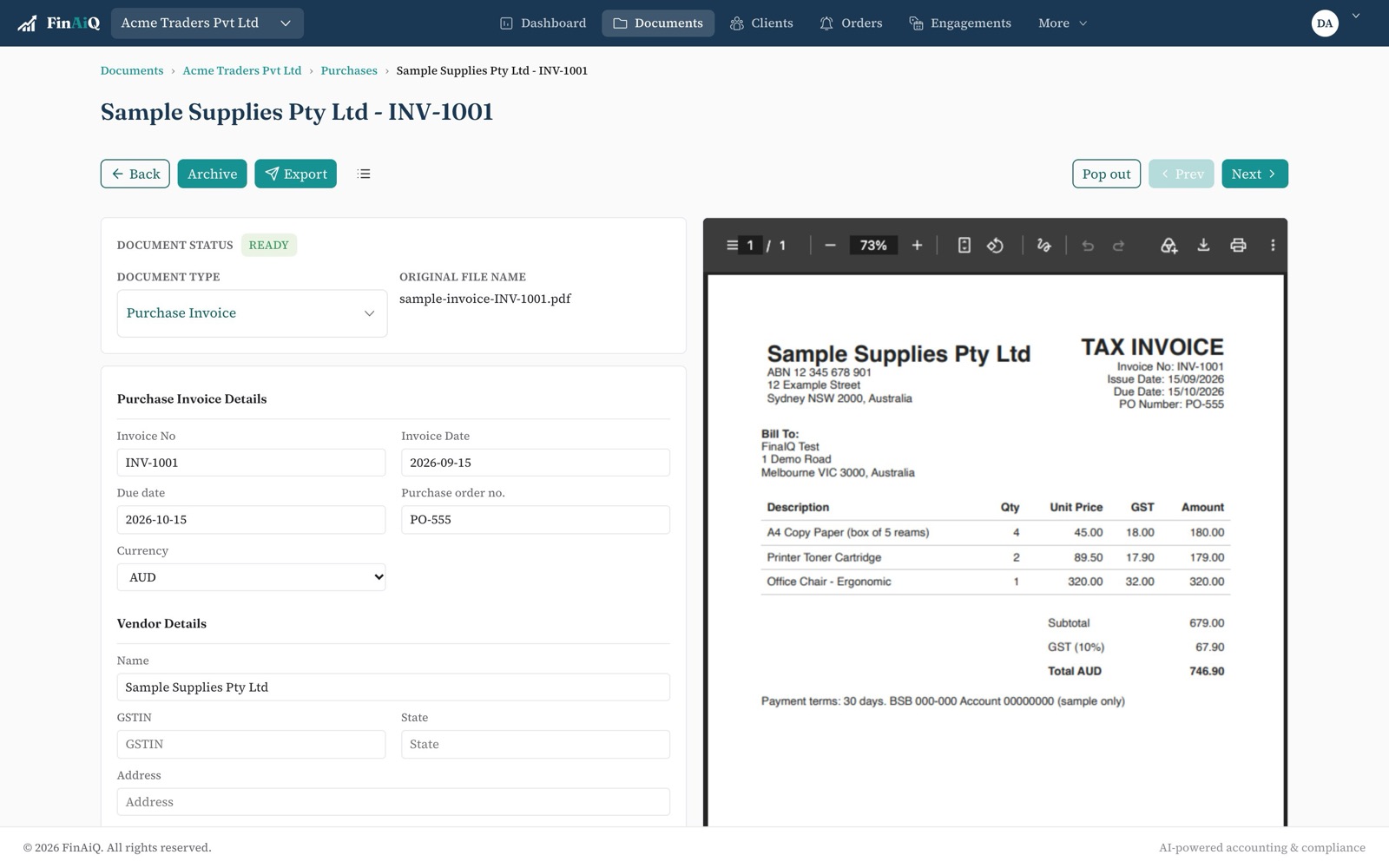
How it works with Xero
- 01
Connect the organisation
Link the client's Xero organisation from the folder's settings.
- 02
Bills are read and checked
Line items, GST and totals are checked; tax rates must match the ones set up in that Xero organisation.
- 03
Export in one click
Send a single bill or a batch. Anything Xero rejects lands in Export failed with Xero's reason.
Questions
- Can each client use a different Xero organisation?
- Yes. Each FinAiQ folder connects to its own organisation.
- What happens if a tax rate doesn't exist in Xero?
- The export stops before anything is sent, and the bill shows which rate is missing.
Connect a Xero organisation.
Start a trial and send your first checked bill.